
Logging In to Your Training Account
Resetting Your Password
Your Course Profile Page
Once you are logged in you will see your course profile page which will list the courses that have been assigned to you by your training ‘Team Leader’. It will look a bit like this:
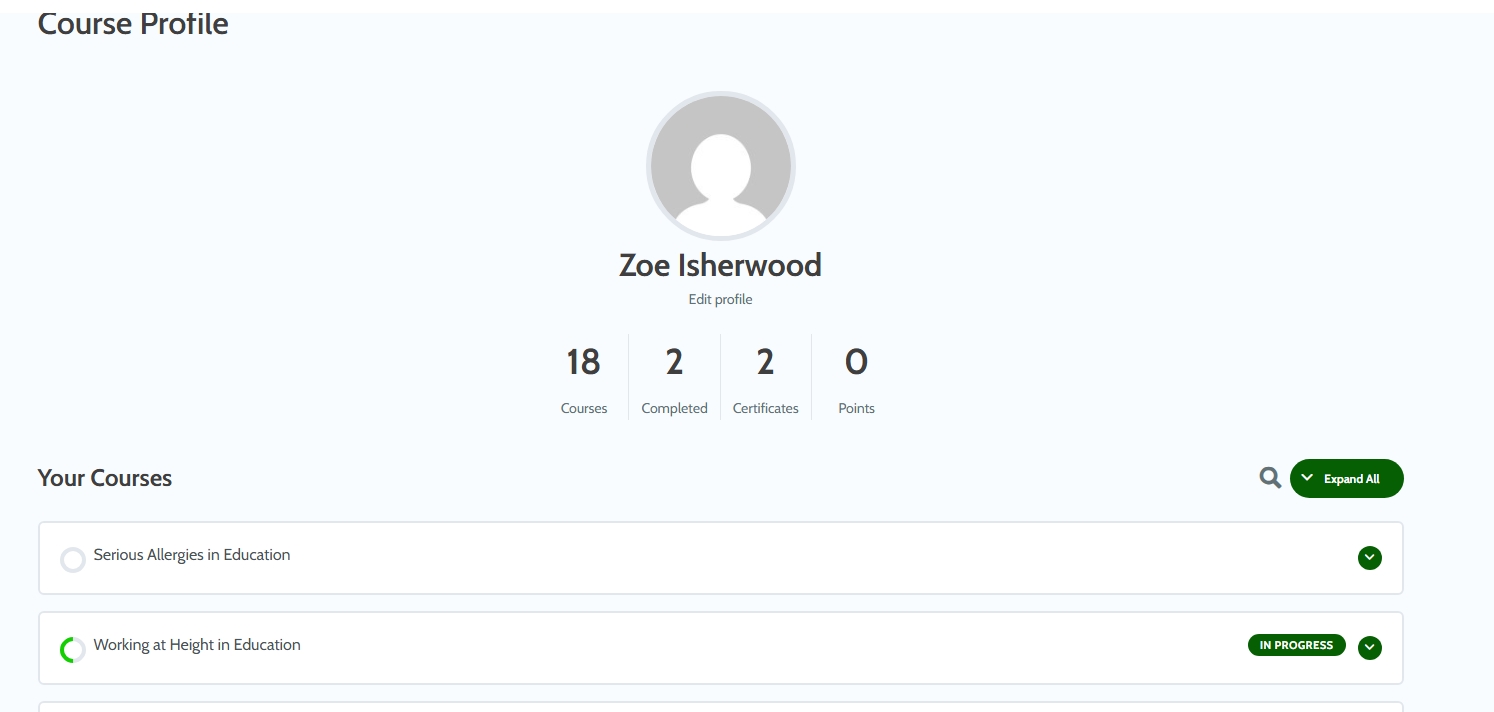
From here you can see your courses and by expanding the sections either with the arrows in green circles or by using the ‘Expand All’ button, you can see your progress too.
Completing Your Course and Saving Progress
When working through the training courses, please ensure that you press the ‘Mark Complete’ button at the end of each section before selecting ‘Next Topic’, to save your progress through the course and get a completion certificate.
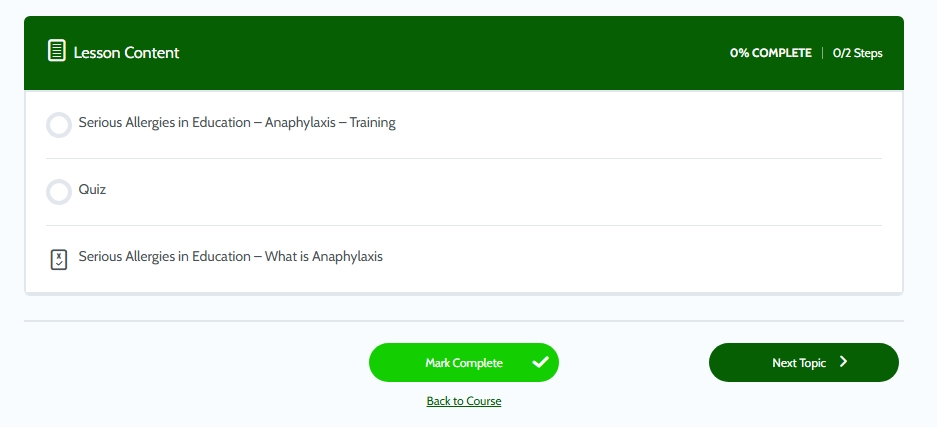
If needed, you can then close down the page and your place will be saved for the next time you log on.
When you get to a quiz, you won’t be able to progress to the next topic without passing the quiz.
Once you have marked all sections complete and passed all the quizzes, you will get a completion certificate.
Your Training Certificates
Resetting Your Training Courses
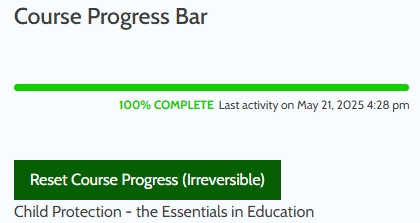 All staff are required to complete GDPR and Cyber Security training annually, in line with national regulations. When your training certification is nearing expiration and you need to retake the course, please follow the steps below to reset your training access:
Once you have completed your course and received a course completion certificate, only reset your progress when your school training administrator has given the go ahead. They need to have downloaded a progress report first, which has a record of your past completion alongside your colleagues’ completion. Once the button is pressed, all associated data- including course completions, dates and results- will be permanently removed. This action cannot be undone.
- Select the course you wish to reset by clicking on its title.
- Once the course opens, you’ll see the Course Progress Bar on the right-hand side, with the ‘reset’ option located just below
- Click the ‘Reset Course Progress’ button.
- The course will then reset, and you’ll be taken to the beginning, ready to start again.